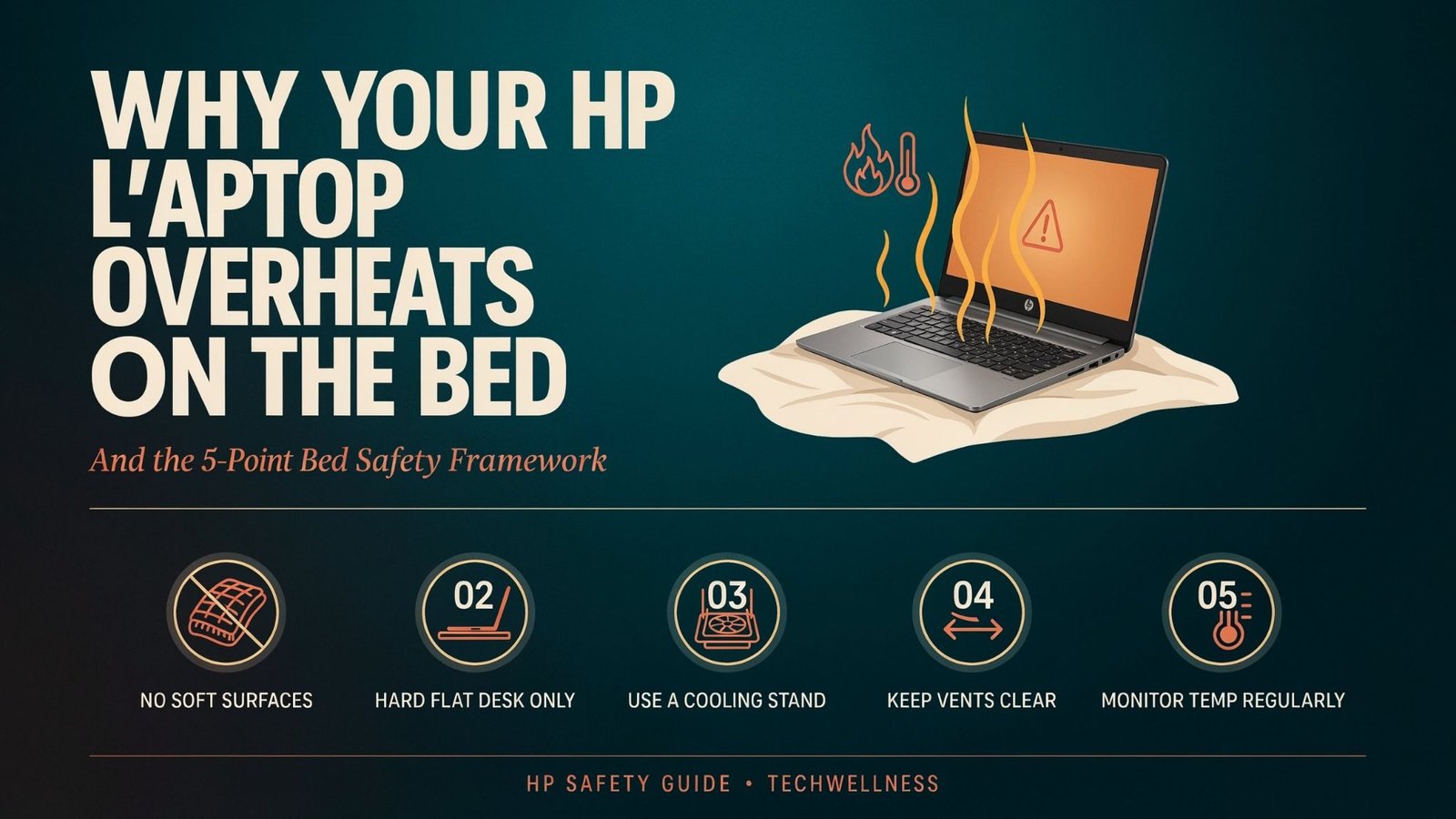
Bed work is easy to do and is done by millions of people every day. A laptop breathes but a mattress and a blanket don’t. If you find yourself rolling your HP laptop on your bed linens frequently, the following article will inform you what is happening to your laptop and what the warning signs are and how you can make your rolling habit safer, while still being comfortable.
The reason for heat problems with soft surfaces
Most computers have vents that bring cool air into the laptop and expel hot air out, typically on the bottom or side of the laptop. If the air cannot flow freely, fans, heat pipes and heat sinks will do nothing.
HP’s support community provides this guidance: A lap, bed or couch cushion can block or impede air flow and over time can overheat and damage the computer. Independent reports confirm that exhaust vents are covered with pillows, blankets and cushions, and this can result in degradation of components over the long term.
The trick is very easy:
- The soft surface covers the intake vents.
- The fan spins at a higher rate but draws less air into the fan.
- Internal temperatures climb.
- Thermal throttling occurs when the processor shuts itself down in order to protect the hardware.
- When the temperature continues to increase, the lap-top freezes or turns off.
Users report this pattern often. One person on a community forum described a laptop that ran in a “slow-motion” state with 100% CPU usage after being moved from a desk to a bed. The cause was blocked airflow, not a software fault.
The Bed Surface Comparison
Not all surfaces are the same. This comparison is more of a practical one, based on the effect each surface has on ventilation. These are general ratings, not lab measurements.
| Surface | Vent clearance | Heat risk | Best use |
| Bare mattress or duvet | Almost none | High | Avoid |
| Pillow or cushion | None, and it molds around the base | High | Avoid |
| Thin lap tray, flat base | Low | Medium | Short sessions only |
| Rigid lap desk with raised edges | Moderate | Low to medium | Light work |
| Lap desk with built-in fan or cooling pad | High | Low | Longer sessions |
| Hard table or desk | High | Lowest | Heavy tasks |
Take note: It is the surface and its duration that poses the risk. . The brand matters much less. Any thin, high-performance laptop will struggle on soft bedding.
The 5-Point Bed Safety Framework
Go through this checklist before opening the laptop in bed.It’s also a useful reference to save off or print out for your personal use.
- Surface check.Place a hard flat board or lap desk underneath the laptop. Don’t place the base on any cushions or bedding.
- Vent check. Look at where your model’s vents are. Do not cover with anything, including your legs, a sleeve or blanket edge.
- Load checkMatch the task to the set-up. Reading, email and documents are fine in bed. Video Editing, Gaming and Large downloads generate a lot of heat and must be done on a Desktop.
- Time check.Close programs that are using a lot of memory and give them a break if you’ve been idle for a while. Never leave it running on soft ground.
- Power check. Unplug and shut down, or at least put the laptop on a hard surface, before you sleep. Charging adds heat on top of an already restricted airflow path.
Warning Signs Your Laptop Is Overheating
Catch these early and you can usually fix the problem with a change of habit:
- Fans running loud and constantly, even for light tasks
- A base or keyboard deck that is uncomfortably hot to touch
- Sudden slowdowns, stuttering or frozen apps
- Random restarts or shutdowns
- Slow charging or battery life loss or deterioration.Rapid discharge.
Repeated shutdowns, extreme throttling, or a case that is getting very hot are not typical, service guidance says.
Repair technicians see this regularly. One described a customer whose supposed hardware fault turned out to be caused by using the laptop on the bed. Clean and cooling pad – the problem came back once more.
Experiences in the real world demonstrate the rate at which heat accumulates. After about a short period of time, one user mentioned a laptop that was discovered at 84°C on a bed with the lid open and charging. This is a user report and not a controlled test but it is in line with the physics of airflow.
The Safety Side: More Than Performance
Heat is not only a performance issue. A man forgot a laptop on a bed or sofa and it sparked a home fire, fire officials have said. One report says that a laptop computer, which was left on a comforter, caught fire due to its extreme heat.
These things happen very rarely, but they’re very common: soft bedding, a charging laptop – and nobody watching.Use a mattress to rest a laptop, don’t leave it unattended while sleeping, or when not in the room.
If it is already running hot, here’s what you need to do.
If laptop has been overheating, perform each of the steps below, one at a time:
- Switch it off and unplug it until it cools down, and then switch it back on.
- Place on a firm, level surface. If it got colder, then it was a matter of ventilation. The first repair guide in a series of technician-written tests on how to fix an overheating laptop.
- Clean the vents. Dust can build up on the bed, but that’s not all it is, since other parts can be clogged with dust which builds up with time.
- Use or switch to balanced or low power mode and close large apps in the background.
- Perform manufacturer’s inbuilt hardware diagnostics and BIOS and driver updates.
- If shutdown occurs again, seek expert advice for diagnosis.
- Fan, dried thermal paste or battery problems might need repairs.
Selecting the Best Bed configuration
If you will keep working in bed, buy for ventilation rather than looks:
- Buy for ventilation if you will work in bed:
- Make sure it has a hard flat surface on the top (rigid lap desk).
- Intake vents are kept open by raised feet or mesh base.
- A thin and adjustable stand also enhances posture, and can adjust the angle of the keyboard
Don’t use lap cushions that are padded and have fabric tops. They are soft, but are able to clog vents like a pillow.
Finally, conclusion: Comfort Without the Risk!
Conclusion: Comfort Without the Risk
Although using an HP laptop on bed surfaces isn’t inherently dangerous, an uneven base with soft surfaces is a real concern. Most of it is solved with a rigid board, clear vents, sensible workloads and a habit of never leaving the laptop running without anyone.