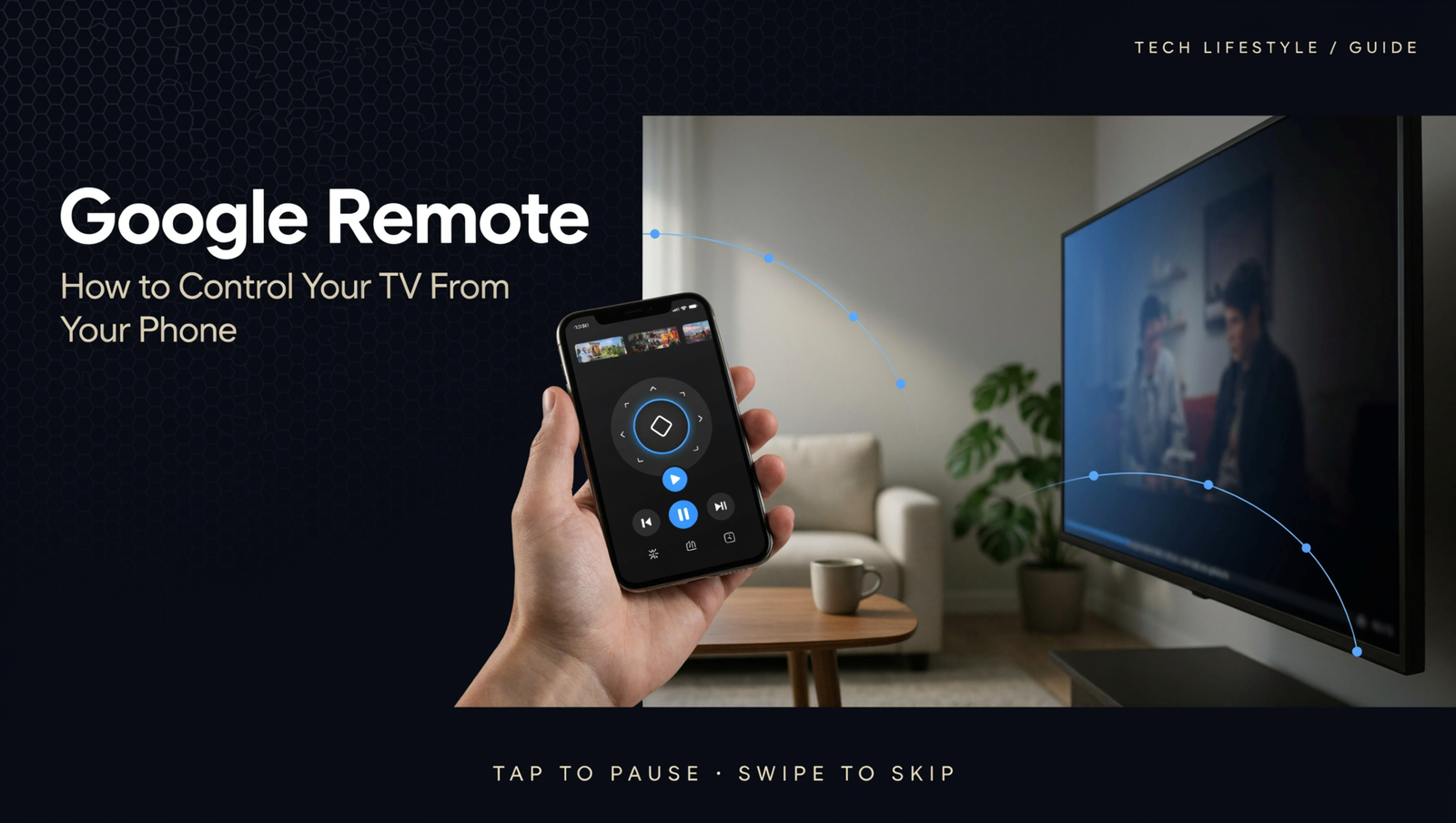
Every household has the same mystery: where did the TV remote go? It slips between sofa cushions, runs out of batteries at the worst moment or gets carried off by a child. The good news is that if you own a Google TV or Android TV device, your phone can do the job instead. This guide explains how the Google remote feature works, how to set it up and what to try when it refuses to connect.
What You Can Do With It
The virtual remote is similar to the actual one. Navigate the screen, play/pause, turn the screen on or off, adjust the volume and activate Google Assistant. It’s also very convenient to type on. Filling in a long password or typing a movie name with a small touchscreen keyboard is cumbersome. It’s much easier and quicker to use your cell phone’s keypad.
The feature will be on even though the remote itself is within easy reach, simply because people prefer typing.
What You Need First
Here are a few things to check before you get started:
A Google TV or Android TV device is required (Chromecast with Google TV and Google TV Streamer included). You both need to be connected to the same WiFi network. The TV must have the Android TV Remote Service, which is pre-installed and automatically updated in most devices to enable the connection. Google’s help pages specify that they require an Android phone or an iPhone using iOS 14 or newer, and the Google Home app or the Google TV app.
Naming is one thing that mystifies people. On non-US devices, the Google TV app is available as the older Google Play Movies & TV. If an app with the title that you’re looking for is not available, search for that title.
Setting It Up With the Google Home App
This is usually the quickest route.
- Switch on your TV and your Google TV or Android TV device.
- Open the Google Home app on your phone.
- Tap the device you want to control.
- Tap Open remote.
Your phone will then show a remote with directional controls and buttons. Follow any on-screen instructions if it asks you to confirm the connection.
Setting It Up With the Google TV App
The second route uses the Google TV app on an Android phone.
- Open the app and tap Remote near the bottom right.
- Tap Scanning for devices at the top.
- Choose your TV or streaming device from the list.
- Follow the instructions on your phone and TV to finish pairing.
Once it’s paired, you can use the phone and the original remote interchangeably. There may be older configurations that require you to type in a code that appears on the TV, then press Pair, so don’t be surprised if you see that option.
Why It Might Not Connect
When the Google remote refuses to find your TV, the cause is usually simple. Work through these checks in order.
Check the Wi-Fi. Both devices must be on the same network. It’s easy to forget that a phone may have switched to mobile data or a guest network.
Restart the TV device. Unplug the power cord, wait about ten seconds and plug it back in, then try setting up the virtual remote again. This cures a surprising number of problems.
Update the remote service. If pairing keeps failing, the Android TV Remote Service on the TV may be out of date. Open the Play Store on the TV and look for updates. Years ago, an update to this service was what finally allowed Google’s in-app remote to pair with some devices.
Check storage. If the TV is almost full, updates can fail. Clearing unused apps may help.
Close and reopen the app. It sounds basic, but it works more often than you’d expect.
Fixing Volume Problems
One of the most frequently reported issues is that the remote’s volume controls don’t work, particularly when it comes to volume controls on the soundbar or receiver. You can verify the setting on Google TV. On the home screen, touch the profile icon, then touch Settings, Remote & Accessories, and then touch Set up remote buttons and Volume control. Take care to ensure that it is Auto (CEC), so that the TV and connected audio equipment receive the same commands.
A Few Handy Tips
Have a shortcut to the app that’s easy to find on the phone so that you don’t have to look for it when you’re sitting at the table. Don’t forget to set it up as well if you share a home with others, as a phone remote gets used by whom they are near the screen. Also, have an extra battery for the physical remote. If the Wi-Fi is down, a phone will have no effect.
Smart home technologies can also be integrated into Android TV devices, which will send commands automatically for those who enjoy tinkering. This is optional, but it gives you an idea of the flexibility of the feature.
Final Thoughts
Google’s remote for your phone isn’t a fad. It only takes a minute to set up, makes typing so much easier and saves your life when your actual remote is lost. Ensure that your devices are on the same network and if something goes wrong, use the Google Home or Google TV app to pair and then try powering the device on again. After it’s in operation, you might find yourself grabbing your cell phone more than the plastic remote again and again.

One Response