Quick Answer
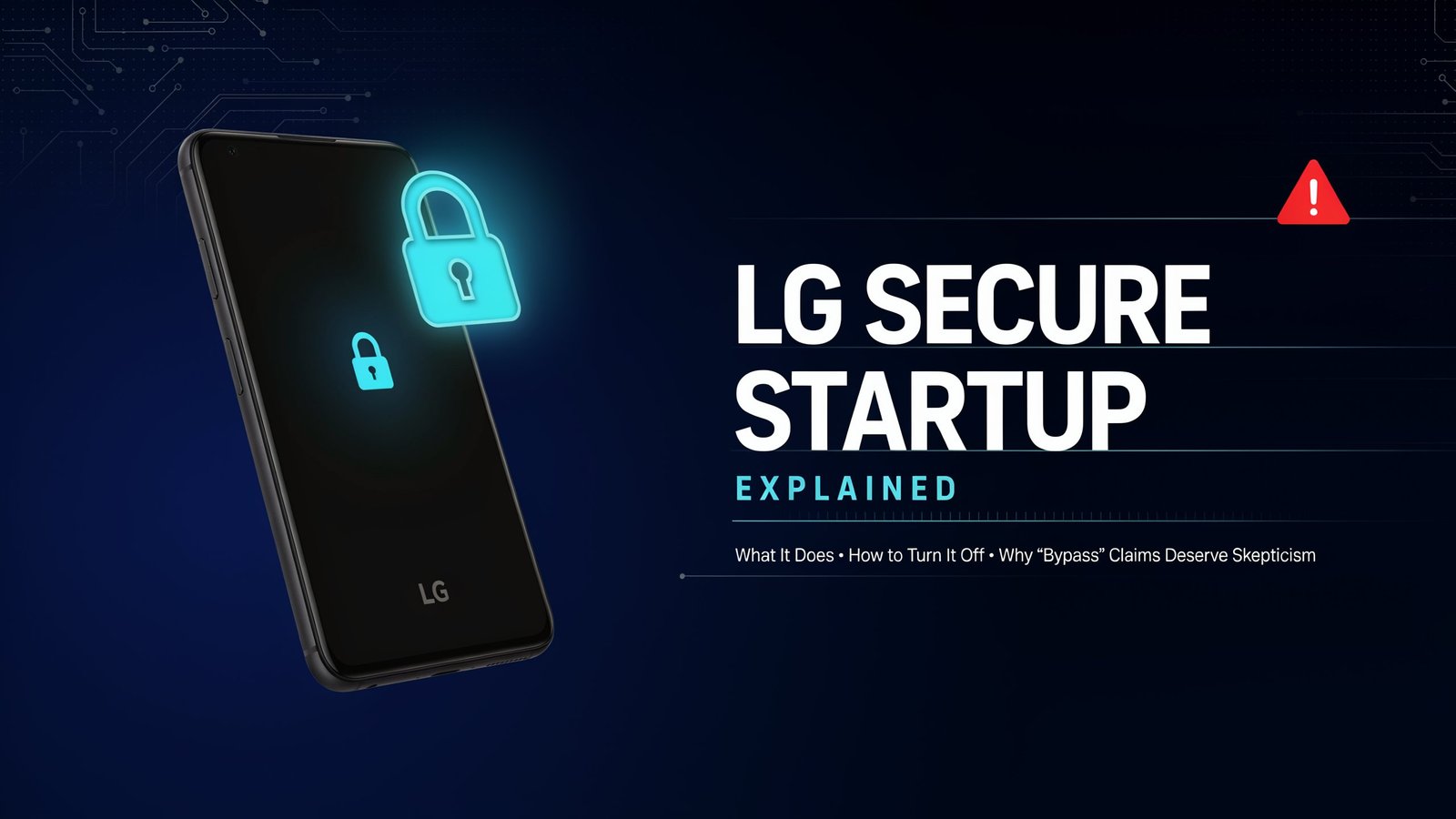
LG Secure Startup is a pre-boot password requirement tied to your phone’s encryption. If you forget the credential, there is no official way to recover the data. LG’s own support documentation says recovery requires a factory reset through a service center, and your data will not be kept. Many “bypass” guides promise more than that, so this article separates what is documented from what is marketing.
What the feature is, how to disable the feature while you have access, a triage process for lockouts and a prevention checklist.
1. What Secure Startup Does
LG’s support page says that if you forget the password, the phone cannot finish starting up, and recovery means a factory reset through a service center, with no existing user data preserved. That is the single most important fact about the feature.
The reason is encryption. According to a forensics forum answer it is additional encryption protection; the phone will prompt for the password (required to create the encryption key) when it boots. If the key is not given, the data remains unusable.
In reality, it will need a PIN, password or pattern to be entered before the device fully boots up. It’s not just like a regular lock screen that comes up after Android has been already running.
2. How to Turn Off the Feature (While You Still Have Access)
This can only be changed if the phone is currently unlocked. The name of the menus may differ from model to model and software version to software version, and these are examples only..
- One guide gives the path Settings > General > Lock Screen & security > Encryption & Credentials > Secure Startup, then choosing No.
- LG’s support pages say you can set or release Secure start-up by resetting the password in Settings > Security > Screen lock.
If neither path matches your phone, search the Settings menu for “secure start-up” or check your model’s manual. Before changing anything, back up your data.
3. Why “Bypass” Guides Conflict With Each Other
Search results for this topic are dominated by software vendors selling unlock tools. Their claims disagree, both with each other and with LG.
This comparison is our own editorial synthesis.
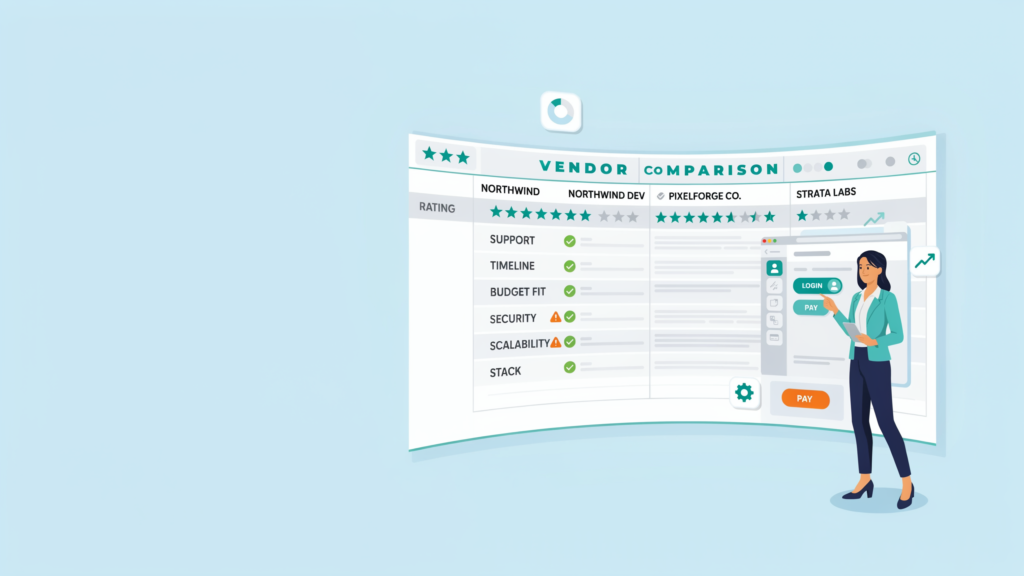
| Claim | What the source says | Reliability note |
| Forgotten password means data is lost | LG states a factory reset is required and data is not preserved. | Manufacturer documentation |
| Google account recovery works | A vendor guide lists the “Forgot Pattern” Google sign-in route as a method. | Vendor with an unlock product to sell |
| Google account recovery does not work | Another vendor says once Secure Startup is on, you can’t unlock with a Google account or backup PIN. | Also a vendor, which contradicts the first |
| Failed-attempt limit | LG says that after 10 failed attempts you must power off and on to try again. A third-party guide says 30 failed attempts may trigger a factory reset. | Limits can vary by model and version |
| Unlock without data loss is possible | One vendor admits bypassing is possible only by understanding the encryption-based design and using realistic methods. |
What to take from this: the manufacturer’s position is clear, and the paid-tool pages contradict one another. If a tool says it will unlock encrypted data without a credential, be wary of it, and never use unlock software on a phone that contains data that is important to you.
4. The Lockout Triage Framework
We created this decision aid for anyone facing the Secure Startup screen. It is not an LG process.
Step 1: Can you recall the credential? Try likely variants calmly. Keep LG’s attempt limits in mind, since repeated failures can force a power cycle or worse on some builds.
Step 2: This can only be changed? if the phone is currently unlocked. The name of the menus may differ from model to model and software version to software version, and these are examples only.
Step 3: Is it your phone? For a second-hand phone, contact the seller for the credential. If the phone isn’t yours, return it rather than trying to open it.
Step 4: Choose the supported path. For a forgotten password, this is the service-center factory reset that LG describes. A reset also wipes the encryption, so you will start fresh.
Step 5: Prevent a repeat. After recovery, decide deliberately whether you need pre-boot protection. LG warns that users must always remember the password they set when Secure start-up is enabled.
Linkable Asset: Secure Startup Safety Checklist
- Credential stored in a trusted password manager, not only in your head
- Recent backup of photos, contacts and files confirmed in the cloud
- You know your model’s menu path for the setting
- Second-hand phones checked for an active lock before purchase
- Unknown “unlock” software avoided on phones holding important data
- Attempt limits understood before repeated guessing
- Decision made on whether pre-boot protection suits your threat level
5. When Pre-Boot Protection Makes Sense
Secure startup trades convenience for protection. Have alternate copies of the data been made elsewhere? When photos, contacts and files are backed up in the cloud, a reset will come with a very small price tag. Otherwise, pause and think about what you’re doing and what will happen if you do it. If you rarely reboot and use a strong screen lock plus device encryption, the added step may not be worth the recovery risk.
Check, too, whether your phone’s software version still receives security updates, since that matters as much as any lock setting.
Open Questions for Expert Contributors
- Mobile Forensics Specialists: What is the difference between pre and post boot encryption keys?
- IT administrators: How do you plan to authenticate Android devices before they boot up for company use?
- Consumer advocates: Should unlock-tool vendors be mandated to report on data-loss risks?
- Repair technicians: What do you tell customers who arrive locked out with no backup?
Conclusion: The Practical Takeaway
The essence of LG Secure Startup is that if you forget your password, you lose your data. If there’s a way to unlock the phone, back it up and determine if you want the feature. When you can’t, add your faith to that of the manufacturer, rather than relying on tools that offer miracles.