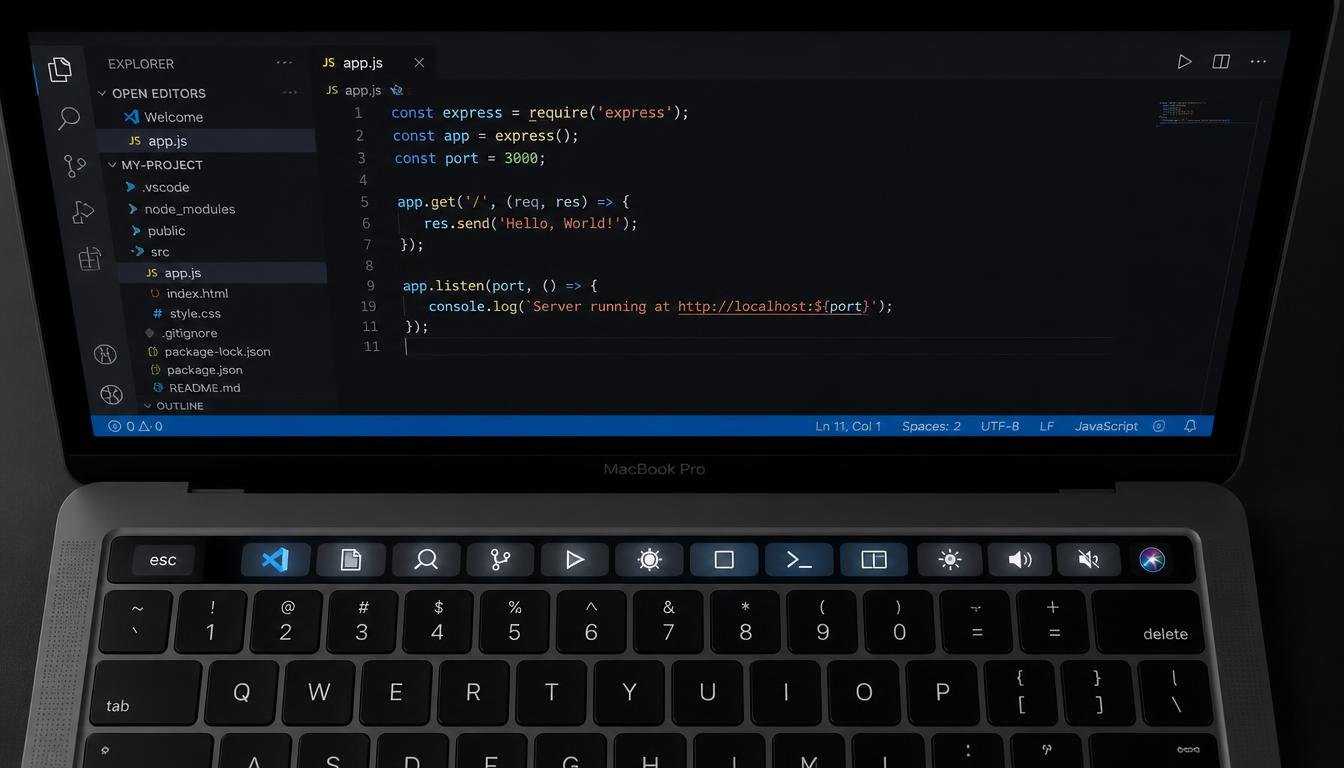
A perk of VSC for older Macbook Pro models featuring the Touch Bar strip above the physical keyboard is that this is also supported directly, allowing you to benefit in the day-to-day development. While Apple has stopped supporting Touch Bar in its lineup of new computers, many developers may still have some in their machines, and it’s best to get acquainted with how you can use the visual studio code touch bar as a productivity aid.
What The Touch Bar Super Offers In VS code
The editor includes a select number of commonly used actions directly in the Touch Bar strip out of the box. These are mainly about two topics – working with your editor history and controlling the debugger. Tapping the strip brings about jumps to the previous or next file recently viewed, or to step through a debugging session, without using the keyboard shortcuts or a menu. The option has existed in the editor since 1.17, back in 2017 when Apple released the Touch Bar for its MacBook Pro collection. Ever since, it’s been a relatively pass-down part of macOS that developers with the hardware have found useful.
Navigating Editor History
One of the most useful default functions is history navigation. While you’re searching a codebase, or debugging as you move back and forth between files, your Touch Bar shows basic arrow back and forward buttons, like those you’d find in a Web browser. This can help save time – particularly for developers who have a number of open file windows on the same coding session and tend to switch from one to another often throughout the session.
Controlling the Debugger
Debug toolbar is probably by far the most helpful default Touch Bar feature for current development projects. On starting a debugging session, the strip will present controls for stepping over code, continuing execution, pausing, and for stopping the whole debugging session. This can help make debugging feel smoother, especially when using the debugger for repetitive step-through debugging, without the need to move hands away from the keyboard area.
Using custom extensions to extend the functionality.
While the usual actions allow you to accomplish much, actual value for the majority of the developers lies in customizations. Since the editor has a large extension-based system, there’s a number of custom extensions on the market that enable you to create easy accessible buttons within the visual studio code touch bar for repetitive duties, similar to a particular build command, a test suite, or a customized script. Faster to set up is to install a marketplace extension corresponding to the purpose, and pick which commands are bound to which buttons (usually from your settings file on preference pane). This customization allows the two developers to set up totally unique Touch Bar configurations for their work processes.
Here are some quick tips on setting up.
Using the Touch Bar on most tech or regular work is not too much work as support is embedded in the editor and not a separate plugin for basic functionality of the Touch Bar. On Macbook with the Touch Bar hardware, with a reasonably up-to-date version of the app, the navigation controls and the debug controls should appear automatically when you open a file or start a debugging session. If you’re interested in more extensions, searching the extensions store for tools that work with Touch Bar makes sense. These extensions now come in a few different configurations – ranging from one-button add-ons to clean up your Amazon purchase data to more elaborate options that can provide multiple actions that are programmable.
Should It Be Used?
There is a fairly even split between developers here. Some users are pleasantly surprised by the default navigation and debug controls, especially when debugging things for long periods of time since it reduces hand motion. Others never even use the strip, and only use the traditional keyboard shortcuts they have grown accustomed to using. This depends entirely on your personal workflow and whether or not you already make most of your interactions tap-based and whether it’s keyboard-based. The visual studio code touch bar can also be a useful reminder and control system for those developers who would rather not memorize long lists of shortcuts; it can be used to augment (but not supplant) normal keyboard input.
A Quick Word on Hardware:
Apple terminated the Touch Bar feature on its more recent Macbook Pro models and switched back to the good old fashioned function keys. This indicates less of a new thing for buyers and more of an issue for those who are still purchasing older models with the Touch Bar. Those age-old MacBooks, however, will still work or at least have the same features and are worth playing.
Troubleshooting Common Issues
When the Touch Bar controls don’t appear as you might have hoped, there are a couple of easy things to try. The very first thing you should do is check that you are also using a relatively new version of the editor as very old versions might not be fully supported. Reopening the app following any Touch Bar related extension can also alleviate display problems, since display changes may need a new application session to occur. Checking macOS’s privacy setting can help, too, because some system level permissions often conflict with the way third-party applications work with the Touch Bar hardware.
Wrapping It Up
In particular, for those that are still developing with a Macbook Pro with Touch Bar support, Visual Studio Code has a very useful and subtle set of embedded capabilities from navigation through quick history to full control over a debugging session right at your fingertips. Pair that with the ability to add extra modules from the community, and it can be adapted to any coding style — even if that means it’s a minority feature for a tiny list of hardware options.



One Response